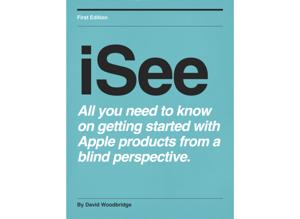
iSee - Using various technologies from a blind persons perspective.

iSee - Using various technologies from a blind persons perspective.

By David WoodbridgeTechnology
Download on the App Store

iSee - Using various technologies from a blind persons perspective. episodes

  • Tech that David uses for work - the Magic List smile
    A year or so ago I did a podcast on my Connected Home which I will most likely update this year.  However, to cover the other side of my life (work), this is the magic list.
     
    ---
     
    I often get asked what type of general and assistive tech stuff I use for work. So here is most of the stuff I use to allow me to test, evaluate, demo, podcast, and use.
     
    Certainly makes accessing the technology that much easier, as I have it at my finger tips, just grab what I need and go.
     
    The tech listed is separate to what my family and I use at home.  I.e. I don’t have to strip anything out of home in order to use when I go out and about for work.
     This was my aim as it got to annoying for my family with me constantly nicking stuff for work, so my tech lab was born.
     
    David Woodbridge January 2020.
     
    The list is roughly sorted in to Apple, Amazon, Google, Microsoft, Samsung, miscellaneous, and assistive technology.
     
    Start Of List
     
    Apple
     
    AirPods Pro.
    Apple TV.
    Apple watch Series 3 Cellular with several bands.
    Beats Pill Bluetooth speaker..
    Beats Power Pro ear phones.
    Beats Studio Over Ear head phones.
    HomePod.
    iPad 9.7 with keyboard, and iPad Pro 12.9 with Smart Keyboard.
    iPhone X (original).
    iPod Touch 7th generation.
    Macbook air.
    MacBook Pro with Touch bar.
    Magic Keyboard 2nd generation..
    Magic keyboard with Number pad.
    Magic trackpad.
     
    Amazon
     
    Amazon Echo Dot 2nd generation.
    Amazon Echo Input.
    Amazon Kindle Ebook Reader.
     
    Google
     
    Google Mini.
    Chromecast audio.
    Chromecast video.
     
    Microsoft
     
    Surface Pro with Smart keyboard.
     
    Samsung
     
    Samsung Galaxy S10.
    Samsung Galaxy Watch.
    Samsung Galaxy Buds.
     
    Miscellaneous Technology
     
    Aftershokz bone Conduction head phones.
    Audio mixer (mainly for podcasting (my iSee podcast), and Vision Australia Radio (Talking Tech show).
    2 microphone wireless kit for recording interviews (Aldi special).
    Blue Yeti USB Microphone.
    Belkin Boost Up Wireless charger.
    Bluetooth transmitter (connects to Bluetooth device and then plugs in to a 3.5mm speaker, head phone etc - comes in handy for recording output from Apple Watch))
    Bose Frames audio  sunglasses.
    Eve Energy switch.
    Eve Weather module.
    LIFX Smart Globe.
    Dash Educational Robot - accessible programming for blind/low vision via Swift Playgrounds on iPad..
    Tello Edu Drone for use with swift Playgrounds on iPad.
    Sets of 3D figures for coding with the Ballyland Coding 1, 2, and 3 iOS apps.
    Fitbit Charge 2.
    Head Phones Wired/Bluetooth (Aldi Special).
    Head phones 3.5MM (quite a few of these).
    Logitech UsB head phone and stereo speakers.
    ScanJig Pro + - document scanning/OCR, and Video conferencing.
    Skoog Tactile music instrument
    Power Bank portable charger for running the Amazon Echo Dot and Telstra Hotspot if power not available.
    Several power boards and extension cables.
    Several 3.5MM audio and Lightning to 3.5MM adapters.
    USB Lightning, Micro, Macro, USBC, keyboard extension   cables etc, and chargers.  Plus universal power point adapters for international travel.
    UsB port replicator for multiple USB and other ports.
    4 UsB adapter to plug in to power point to support direct plugging in of cables to charge devices.
    UsB External Hard drive.
    Various adapters for iPhone/iPad (VGA, HDMI etc).
    Various UsB and memory card types.
    Tile Tag Tracking device.
    Telstra Hot spot.
     
    Assistive Technology
     
    BrailleSense U2 Braille note taker.
    Dolphin Gide Connect and Guide Reader with physical remote.
    Dolphin Guide Pod.
    Envoy Connect Daisy player.
    Large print USB black/white, white/black, and yellow/black keyboards.
    Mini Guide sonar device.
    Pac Mate USB Braille Display from 2004 still working.
    Perkins Brailler.
    RIVO Custom keyboard for using Voiceover on iOS and Talkback/Voice Assistant on Android/Samsung.
    Tap With Us wearable keyboard.
    Orbit Reader 20 Braille display.
    Pearl Camera with OpenBook.
    Victor Reader Stream 2nd generation.
    Switch control devices for iOS.
     
    End Of List
    5 min
  • MacBook Pro 16 Review by David Woodbridge
    Review notes of the MacBook Pro 16
     
    In the Box
     
    MacBook Pro 16 inch.
    96W power adapter (to support the 100MAH battery which can still be taken onboard an aircraft).
    USBC cable.
    Documentation.
     
    Main Specs
     
    16 inch Retina display.
    Intel Core i9.
    Apple T2 Security chip for both security and system functions.
    4 Thunderbolt 3/USBC ports (4 ports).
    Up to 8 core processor.
    Up to 8TB SSD storage.
    Up to 64MB memory.
    AMD Radeon Pro 5000M series graphics.
    Up to 11 hours of battery life when wireless web browsing and video playback (compared to 10 hours with the previous MacBook Pro 15).
    6 speaker sound system (has to be heard to be believed (my comment) and studio quality mics (3 in an array.
    Keyboard - Magic Keyboard with refined scissor mechanism with 1MM travel (absolutely a much better keyboard), Touch Bar, Touch Bar (physical Escape key on left and :Touch ID/Power button on right), and inverted capital T cursor keys.
    720P iSight camera.
     
    MacBook Pro 16 slightly longer/wider than the MacBook Pro 15, and 0.76CM thicker.
    Weight: MacBook Pro 1.82KG, MacBook Pro 16 1.95KG.
     
    The MacBook Pro 16 due to the larger heat sync and better air flow, the MacBook Pro 16 is a lot less likely to throttle cPU performance back when under significant multi core and multi thread processing.
     
    The MacBook Pro 16 is for heavy duty professional use such as video editing, compiling code, merging thousands of audio files etc.
     
    Physical Description
     
    Left side: 2 Thunderbolt 3 USBC ports towards back of the unit.
     
    Right side: 3.5MM head phone jack, and 2 Thunderbolt 3 USB ports towards back of the unit with the head phone jack first when going from back to front on the left hand side.
     
    Bottom: 4 rubber feet at each corner in slightly to prevent unit slipping on a surface.
    Also on the bottom, on the left and right hand side, a long vent containing the speakers.
     
    Top: retina screen containing the camera. Between the Touch Bar and the screen towards the left 3rd is the 3 mic array.  Left and right of the Touch Bar physical Escape key, and on the right of the Touch Bar the Touch ID/Power key.
    The rest of the keyboard is in front of the Touch Bar with dots on the F and J, the inverted capital T (is back).
    In front of the keyboard, is the large haptic style Trackpad.
     
    Front edge - moulded indented area to allow screen to be lifted up.
    .
     
     
    Installation and Setup Issues
     
    Opening up the MacBook Pro 16 for the first time, system automatically turns on. Waiting for the boot sequence, user will be prompted if they wish to use VoiceOver.
     
    Typical setup process for setting up a new Mac - selecting language/country, connecting to a WiFi network, logging in to 
    AppleID, choosing display, privacy screens, setting up Hey Siri, setting up Touch ID, and so on.
     
    I had issues installing/setting up Mac OS Catalina 10.15.1 namely unable to choose my WiFi network from the table list (focus issues with VoiceOver), unable to sign in with two AppleIDS for iCloud/Media, and Hey Siri kept being read out by VoiceOver so had to stop.
     
    Also whilst Touch ID did work for setup, was not getting percentage or instruction to put finger on or off via VoiceOver as is the case with iOS.
     
    Finally had to setup Mac without AppleID, and Hey Siri.  Completed this in System Preferences/Internet accounts once Mac setup.
     
    One final issue, had to update to Mac OS 10.15.2 as there was a bug with VoiceOver in 10.15.1 where the Time Option+T once VO Keyboard Commander turned on via Shift+VO+K wouldn’t work, fixed in 10.15.2.
     
    As with all Macs used, I made the following changes:
    In Finder preferences  - turn on Show Hard Drive on the Desktop, and show File Extensions.
    Finder view - changed to List View.
     
    System Preferences/Accessibility:
    Check - Show Accessibility Status in Menu Bar.
    Speech - Check Enable Announcements, and Check Speak Selected Text When a Key is Pressed. 
    Descriptions - Check Play Audio Descriptions when Available..
     
    System Preferences/Date and Time/Clock - Announce the Time Every (Quarter Hour).
    System Preferences/Users - check VoiceOver within Accessibility options to come up at login screen.
    System Preferences/Siri - change Siri short-cut to FN+Space Bar.
    System Preferences/Sound - check Play Feedback When Volume is Changed. Adjust the sound volume for Time/date Announcement.
     
    Mail - Shift+Command+M Show Mail Box List.
    Safari/Preferences/Advanced - check Press Tab to Highlight Each Item on a Webpage.
     
    VoiceOver Utility/verbosity - uncheck  Announce Hints in VoiceOver cursor.
    VoiceOver/Trackpad Commander - Enabled VO+two finger clockwise rotate.
    VoiceOver/Keyboard Commander - Enabled Shift+VO+K.
     
    Physical Benefits of the New MacBook Pro 16
     
    Physical Escape key rather than using the virtual Escape key on the Touch Bar.
    Escape key and Touch ID button well spaced away from the Touch Bar.
    Good separation between key rows on the keyboard.
    Inverted capital T much easier to locate the Arrow keys.
     
    The Touch ID makes it extremely easy to pay for purchases, and to unlock the MacBook Pro 16.
     
    Absolutely amazing spacial studio sound when sitting in front of the MacBook Pro 16 speakers with excellent base.  Actually does sound like you are sitting in front of a HomePod.
     
    VoiceOver sounds extremely clear with the speakers, and the Progress Clicks for the progression of a progress bar from the left to the right stereo speakers are quite profound and very easy to pick up and listen to.
     
    Interesting effect when listening to voiceOver and music, voiceOver really does sound like its coming from a speaker in front whilst the music is coming from the speakers everywhere: makes it easier to listen to VoiceOver whilst listening to music.
     
    Very high quality retina screen of benefit to low vision users, particularly when in conjunction with Zoom and the other new options in Catalina to have items speak under the pointer, and hover text magnification.
     
    Benefits and Points to Consider
     
    As there is no function bar, you can easily use F1 to F10 function style keys with VoiceOver by holding down the Fn key which turns the row of numbers in to F1 to F10.  For example, to do VO+F8 it would be FN+VO+8 (8 on the number row).
    Note  for volume Up or Down for VoiceOver - Shift+VO+Dash or VO+Equals.
     
    To use Touch Bar with VoiceOver, 1 finger drag or flick left or right across Touch Bar, to explore, and then 1 finger double tap on item to activate.
    Note - Touch Bar changes options depending what application is in focus.
     
    To toggle VoiceOver on or off non Touch Bar Macbook’s - Command+F5.  Touch Bar - Command+Touch ID 3 times.
     
    To bring up the Accessibility Options Dialog box, on Macbook’s with no Touch Bar Option+F5, with Touch Bar Option+Touch ID 3 times.
     
    With Mac OS Catalina, it is now possible to have various accessibility options turned on before the login screen, not just VoiceOver which was previously the case in earlier versions of Mac OS.
     
    Transferring from a previous keyboard such as the MacBook Pro 13 or MacBook Air etc, is now much easier to transfer to the MacBook Pro 16 due to the excellent layout of the keyboard.
     
    Keyboard is an absolute joy to type on with the keys having good mechanical feedback and motion.
     
    I still surprisingly found VoiceOver’s change voice parameters command Shift+VO+Command+Arrow keys still extremely sluggish even on this MacBook Pro 16.  Ever since Apple switched the this command from VO+Command+Arrow keys the responsiveness of switching between the various speech parameters of Rate, Pitch, Volume etc has been very disappointing in the time it takes to switch from one item to the next: really does feel like I’m using a very old MacBook from a decade ago.
     
    As the MacBook Pro 16 has no USB ports, a USBC hub with USB and other ports would be of advantage, especially if wanting to plug in a USB Braille display.  Not a disadvantage, just something to keep in mind.
     
    Quite surprisingly, I still kept getting VoiceOver’s “busy” processing announcement every now and again when doing such simple tasks as adding an attachment to Mail.  With the Shift+VO+Command issue as well, I’m wondering if the actual code for VoiceOver has at all been optimised to take advantage of the faster processor?
     
    The MacBook Pro 16 does get quite warm when using it on your lap, particularly if wearing shorts and the aluminium casing is in contact with your skin, quite noticeable and may be uncomfortable for some.
     
    The increase in weight over the other MacBooks may be a consideration in carrying the unit around.
     
    The only way to get high quality microphone recordings out of the MacBook Pro 16 is to try and speak directly in to the Mic array (which is quite difficult given it’s placement).  It does not compare to an external microphone, especially when being able to get closer or positioning an external mic close to your mouth.
     
    The 720P iSight camera located at the top of the screen as with other MacBooks, is disappointing in such a high end MacBook given the target market, and the ever growing use of video conferencing including Apple’s own FaceTime group conferencing facility.
     
    When invoking Siri via the keyboard shortcut, or “Hey Siri” ,would have been useful to have the usual alert sound to let the user know that Siri is listening.  This happens whether using the internal speaker or head phones (same with Hey Siri).
     
    Summing Up
     
    The MacBook Pro 16 is clearly aimed at the pro market where besides getting through massive amounts of processing quickly, it also translates in to less time taken to produce content: i.e. time is money.  However, for VoiceOver users, the new keyboard/layout, and the sound of music/VoiceOver does make this MacBook Pro an attractive MacBook (if price is no option).
    For low vision users, it is important to point out that whilst the physical screen is bigger, display wise it is primarily still the same retina screen found in the MacBook Pro 13.
    It would be great to see this keyboard come back in other MacBooks as they hopefully are updated with this new style of keyboard, without the price tag of the MacBook Pro 16, especially for the ageing population who don’t need a fast machine, but do need a larger screen, and a easy to use keyboard.
     
    For a portable go anywhere MacBook and cost effective, the MacBook Air is still the way to go, particularly for students  However, not with the new keyboard.
     
    For a good mix of portability, power, and a bit more pricey, the entry or high level MacBook Pro 13 is a solid option, particularly for school and work where a bit more power is required.  However, not with the new keyboard.
     
    Note - the MacBook Pro 16 replaced the MacBook 15, hence the new line up - MacBook Air, MacBook Pro 13, and MacBook Pro 16.
     
    A lovely unit. For me as a podcaster and radio show presenter, I am quite disappointed by the positioning of the mics as I would have liked to been able to just use the MacBook Pro 16 itself.  All the advancement has gone in to the processing speed which is fantastic for high pro users, but perhaps a little bit more thought should have gone in to the positioning of the mic array, and the 720P camera for video conferencing (even pros want to video conference and not just data crunch smile).
    41 min
  • Demo of the InsideOne Windows 10 Braille Tablet - first truly Windows tablet with a Braille display inbuilt
    Physical description and run through of the basic (Home) mode for the InsideOne windows 10 Braille tablet.
    Further demos to come including a 2nd demo on a bit more on Home mode, then looking at using NVDA or JaWS switching, plugging in a QWERTY keyboard etc.
    Note - the InsideOne’s Braille display is 32 cells, has a microphone at the front edge, the 2 cameras front/back, and a 10 inch HD screen as the tablet can also be used by sighted as well as speech or Braille users.
    Developer website is: www.insidevision.fr
    Australian distributer Quantum RLV: www.quantumrlv.com.au
     
    Enjoy
    37 min
  • A look back on the 2010 to 2020 decade and the next for assistive and main stream tech
    Some food for thought.
     
    The past decade has seen a lot of assistive and main stream tech come on to the market.
     
    Below is my list of products and services that I have come across over the last 10 years in Australia.
     
    I may have put in some products that were already around in 2010, but their still around smile.
     
    After this list, is a current/Future list perhaps on things to look out for and deal with for the next decade, some of which we still haven’t resolved for accessibility at least in Australia.
     
    The decade was quite busy, and I haven’t put in everything, just the stuff that we dealt with at Vision Australia or in the community in general.
     
    And Yes I put Apple First smile.
     
    David Woodbridge December 2019
     
    The Decade - 2010 to 2020
     
    iPad - I did an unofficial launch of the iPad in Australia in Brisbane in 2010.
    Siri.
    Apple TV.
    Apple Watch.
    HomePod.
    AirPods.
    Apple Pay - I did a channel 7 TV interview at the Broadway Apple Store when Apple Pay first became available in Australia).
     
    Amazon Echo (plus Echo Show with screen).
    Cortana.
    Google Home (plus Google Home Nest Hub with screen).
     
    Sneaking this in, in 2009 Voiceover was released for iOS and Talkback for Android became available with OS 1.5 Cupcake.
     
    4G available in Australia in 2011, with movement at the end of this decade to 5G.
    Accessibility dedicated support Helpdesk from Apple, Amazon, Google, and Microsoft.
    Accessible radios such as the Sangean PR-D17 Accessible AM/FM radio.
    Aira and Be My Eyes video assistance services.
    Amazon Officially comes to Australia.
    Audio Description becoming more available not just on DVD, but streaming services (TV not yet supported in Australia yet)) - ABC iView was trialed with 14 hours of content (mid decade) per week and then stopped after 18 months or so, funding for 2020 now for more content on TV.
    Audio streaming - AirPlay, Sonos, Chromecast etc.
    Apple offers ESIMM support plus physical SiMM from iPhone X S and above plus carriers in Australia supporting Apple Watch ESIMMS.
    Apps and more apps - replacing many dedicated blind or low vision devices such as OCR systems, video magnifiers, light detecters etc.
    App controlled devices allowing accessibility via smart phones - alarm systems,  air Conditioner, coffee machines, robot vacuum, video doorbell, washing machine/dryer etc.  Other apps to control such devices as the Fitbit exercise tracker etc.
    Bindi Maps arrives on the scene with indoor beacons at some Vision Australia and Guide Dog offices plus other places such as a shopping centre in Sydney (had the pleasure of working with the Bindi Maps folks in testing out the app and beacons).
    Braille display support for both iOS and Android (Brailleback not Talkback for Android).
    Brailling on a flat touch screen (VoiceOver BSI).
    Bluetooth keyboard full support for VoiceOver on iOS, OS support on Android using Talkback.
    Bluetooth keyboards supporting multiple devices.
    Bluetooth Braille displays to support multiple devices.
    Bush or the Hills Set Top talking digital set top box became available in Australia (didn’t really last that long).
    Bone conduction ear phones and other audio devices like the Aftershokz, Bose Frames etc.
    Coding accessibility - Swift Playgrounds from Apple,  and Code Jumper from Microsoft.
    Custom devices such as the Victor Reader Stream  for reading daisy books, online streaming of radio etc.
    Dolphin Pod and Dolphin Guide Pod making reading books easier by plugging in to a tV.
    Dot Watch smart Braille watch.
    Envoy Connect - cheap daisy player.
    Expansion of accessibility solutions on desktop/mobile platforms.
    Gaming consoles such as the Xbox, and the Apple TV with accessibility and improvements to actual game play accessibility.
    Improvements to Apple and Microsoft screen readers, especially Narrator in Windows 10 plus touch screen support for Narrator.
    Changes to Braille displays and notetakers (Android stuff) and Windows - BrailleNote Touch, Polaris, ElBraille, InsideOne.
    Commute first 9 line Braille display book reader.
    JAWS and Zoomtext continue to grow plus combining to form Fusion. Window-Eyes discontinued.  MAGic mainly used for legacy institutions, Supernova coming back a bit.  Non Visual Desktop Access (NVDA) still going strong as well.  Guide Connect comes back on the scene in the later part of the decade, at least in Australia.
    iBooks first becomes available on the iPad, then followed by iOS - plus now Google books, Kindle books etc on mobile.
    Kindle physical eBook readers.
    Microsoft opens up a store in Sydney, very similar to the Apple Store and great service.
    Microsoft Accessible Xbox Console controller.
    Microsoft fully supporting Microsoft Office not only on Windows, but on Mac with full accessibility with Voiceover.
    Microsoft amazing two apps - Seeing AI, and Sound Scape.
    Mesh networking for home to increase WiFi coverage across living spaces.
    Mobility aids such as the Buzz Clip or Sunu Band become available.
    OCR becomes a bit more portable with the Pearl Camera and OpenBook
    Smart Vision 2 (Android smart phone) to still offer touch screen and physical keys for screen reader users.
    Samsung Smart phone/tablet with Voice Assistant.
    Samsung Galaxy Watch with Voice Assistant.
    Smart Home switch’s, smart Globes ,  etc.
    Smart TVS with accessibility - Samsung with Voice Assistant, Android TV etc.
    Streaming music and video services - Amazon Music/Prime, Apple Music/Apple TV Plus, Disney Plus, Netflix, Spotify etc.
    Switch control for desktop/mobile platforms.
    RIVO keyboard (custom keyboard for VoiceOver, Talkback and Voice Assistant on mobile).
    Tactile bank notes in Australia.
    Talking devices on a bit of a come back - talking microwave, talking induction hob, talking blood pressure monitor, talking pedometer,  etc.
    Trackpad external supported with VoiceOver on Mac Snow Leopard and then later on MacBooks.
    Touch Bar supported on MacBook Pros with VoiceOver.
    Tile tags or other tracking devices.
    Touch ID and Face ID.
    Trekker Breeze - stand alone GPS device.
    Wearables - Echo Loop, Tap with Us, Orcam, Iris Vision, Aira smart glasses etc.
    Wireless charging.
    Vision Australia produces iOs and Android apps to access online library.
    Vision Australia Radio accessible via the Internet as well as podcasts.
    Video conferencing Facetime, Skype, Zoom
    Voice dictation and voice control becoming settled in main stream for desktop/mobile.
     
    Now/Current and Next Decade
     
    3rd party screen readers or screen magnifiers no longer required.
    3D printing becomes more accessible and doable at home.
    5G implications.
    Accessible digital radios.
    Accessible fitness equipment in their own right.
    Accessible cable set top box’s, especially Foxtel in Australia.
    Accessible EFTPOS terminals.
    Accessible or better access solutions to ATMS.
    Accessibility push for apps for desktop/mobile, and the web 
    continues.
    Accessible office equipment.
    Accessible public places/institutions - library, museum etc.
    Automated train systems (driverless trains such as Sydney metro light rail).
    Automated elevators where car is selected by a touch screen and need to find the actual car to go in 
    to.
    Automated lawn mowing machines.
    Bus - identify bus number, route, and bus stop.
    Better and wider coverage for  mobile and home WiFI.
    Biometrics for security.
    Delivery drones.
    Electric cars (audible sounds).
    Finding and identifying products when physically shopping.
    Independent train/train station, and Aircraft/airport travel (plus accessible entertainment inflight).
    Indoor beacons and indoor maps.
    GPS improvements - better accuracy, work better in bus/trains, and work better in built up areas such as tall building city scapes.
    Object recognition for physical environment and implications for O&M.
    OCR will do hand writing recognition.
    PDF file access is finally conquered.
    Phones with no physical buttons or controls.
    Robot Guide Dog.
    Smart speakers and personal assistants will cope with variations in a persons speech pattern.
    Smart Speakers and personal assistants improve with better AI.
    Smart TVS get better accessibility, especially with apps/browsing the web.
    Smart device replaces mobile/desktop , becomes one device.
    Smaller and discrete wearable devices.
    Self service check outs in shops.
    Self service kiosks.
    Self driving vehicles used for dedicated routes.
    Speech input/output in devices.
    Solar and.or public charging stations for smart phones etc on trains, public spaces etc.
    Touch screens in cars.
    Touch screen home appliances.
     
    End of Document.

    9 min
  • A look back at the decade for assistive and main stream tech and in to the future
    Some food for thought.
     
    The past decade has seen a lot of assistive and main stream tech come on to the market.
     
    Below is my list of products and services that I have come across over the last 10 years in Australia.
     
    I may have put in some products that were already around in 2010, but their still around smile.
     
    After this list, is a Now/Future list perhaps on things to look out for and deal with for the next decade, some of which we still haven’t resolved for accessibility at least in Australia.
     
    The decade was quite busy, and I haven’t put in everything, just the stuff that we dealt with at Vision Australia or in the community in general.
     
    And Yes I put Apple First smile.
     
    David Woodbridge December 2019
     
    The Decade - 2010 to 2020
     
    iPad - I did an unofficial launch of the iPad in Australia in Brisbane in 2010.
    Siri.
    Apple TV.
    Apple Watch.
    HomePod.
    AirPods.
    Apple Pay - I did a channel 7 TV interview at the Broadway Apple Store when Apple Pay first became available in Australia).
     
    Amazon Echo (plus Echo Show with screen).
    Cortana.
    Google Home (plus Google Home Nest Hub with screen).
     
    Sneaking this in, in 2009 Voiceover was released for iOS and Talkback for Android became available with OS 1.5 Cupcake.
     
    4G available in Australia in 2011, with movement at the end of this decade to 5G.
    Accessibility dedicated support Helpdesk from Apple, Amazon, Google, and Microsoft.
    Accessible radios such as the Sangean PR-D17 Accessible AM/FM radio.
    Aira and Be My Eyes video assistance services.
    Amazon Officially comes to Australia.
    Audio Description becoming more available not just on DVD, but streaming services (TV not yet supported in Australia yet)) - ABC iView was trialed with 14 hours of content (mid decade) per week and then stopped after 18 months or so, funding for 2020 now for more content on TV.
    Audio streaming - AirPlay, Sonos, Chromecast etc.
    Apple offers ESIMM support plus physical SiMM from iPhone X S and above plus carriers in Australia supporting Apple Watch ESIMMS.
    Apps and more apps - replacing many dedicated blind or low vision devices such as OCR systems, video magnifiers, light detecters etc.
    App controlled devices allowing accessibility via smart phones - alarm systems,  air Conditioner, coffee machines, robot vacuum, video doorbell, washing machine/dryer etc.  Other apps to control such devices as the Fitbit exercise tracker etc.
    Bindi Maps arrives on the scene with indoor beacons at some Vision Australia and Guide Dog offices plus other places such as a shopping centre in Sydney (had the pleasure of working with the Bindi Maps folks in testing out the app and beacons).
    Braille display support for both iOS and Android (Brailleback not Talkback for Android).
    Brailling on a flat touch screen (VoiceOver BSI).
    Bluetooth keyboard full support for VoiceOver on iOS, OS support on Android using Talkback.
    Bluetooth keyboards supporting multiple devices.
    Bluetooth Braille displays to support multiple devices.
    Bush or the Hills Set Top talking digital set top box became available in Australia (didn’t really last that long).
    Bone conduction ear phones and other audio devices like the Aftershokz, Bose Frames etc.
    Coding accessibility - Swift Playgrounds from Apple,  and Code Jumper from Microsoft.
    Custom devices such as the Victor Reader Stream  for reading daisy books, online streaming of radio etc.
    Dolphin Pod and Dolphin Guide Pod making reading books easier by plugging in to a tV.
    Dot Watch smart Braille watch.
    Envoy Connect - cheap daisy player.
    Expansion of accessibility solutions on desktop/mobile platforms.
    Gaming consoles such as the Xbox, and the Apple TV with accessibility and improvements to actual game play accessibility.
    Improvements to Apple and Microsoft screen readers, especially Narrator in Windows 10 plus touch screen support for Narrator.
    Changes to Braille displays and notetakers (Android stuff) and Windows - BrailleNote Touch, Polaris, ElBraille, InsideOne.
    Commute first 9 line Braille display book reader.
    JAWS and Zoomtext continue to grow plus combining to form Fusion. Window-Eyes discontinued.  MAGic mainly used for legacy institutions, Supernova coming back a bit.  Non Visual Desktop Access (NVDA) still going strong as well.  Guide Connect comes back on the scene in the later part of the decade, at least in Australia.
    iBooks first becomes available on the iPad, then followed by iOS - plus now Google books, Kindle books etc on mobile.
    Kindle physical eBook readers.
    Microsoft opens up a store in Sydney, very similar to the Apple Store and great service.
    Microsoft Accessible Xbox Console controller.
    Microsoft fully supporting Microsoft Office not only on Windows, but on Mac with full accessibility with Voiceover.
    Microsoft amazing two apps - Seeing AI, and Sound Scape.
    Mesh networking for home to increase WiFi coverage across living spaces.
    Mobility aids such as the Buzz Clip or Sunu Band become available.
    OCR becomes a bit more portable with the Pearl Camera and OpenBook
    Smart Vision 2 (Android smart phone) to still offer touch screen and physical keys for screen reader users.
    Samsung Smart phone/tablet with Voice Assistant.
    Samsung Galaxy Watch with Voice Assistant.
    Smart Home switch’s, smart Globes ,  etc.
    Smart TVS with accessibility - Samsung with Voice Assistant, Android TV etc.
    Streaming music and video services - Amazon Music/Prime, Apple Music/Apple TV Plus, Disney Plus, Netflix, Spotify etc.
    Switch control for desktop/mobile platforms.
    RIVO keyboard (custom keyboard for VoiceOver, Talkback and Voice Assistant on mobile).
    Tactile bank notes in Australia.
    Talking devices on a bit of a come back - talking microwave, talking induction hob, talking blood pressure monitor, talking pedometer,  etc.
    Trackpad external supported with VoiceOver on Mac Snow Leopard and then later on MacBooks.
    Touch Bar supported on MacBook Pros with VoiceOver.
    Tile tags or other tracking devices.
    Touch ID and Face ID.
    Trekker Breeze - stand alone GPS device.
    Wearables - Echo Loop, Tap with Us, Orcam, Iris Vision, Aira smart glasses etc.
    Wireless charging.
    Vision Australia produces iOs and Android apps to access online library.
    Vision Australia Radio accessible via the Internet as well as podcasts.
    Video conferencing Facetime, Skype, Zoom
    Voice dictation and voice control becoming settled in main stream for desktop/mobile.
     
    Now/Current and Next Decade
     
    3rd party screen readers or screen magnifiers no longer required.
    3D printing becomes more accessible and doable at home.
    5G implications.
    Accessible digital radios.
    Accessible fitness equipment in their own right.
    Accessible cable set top box’s, especially Foxtel in Australia.
    Accessible EFTPOS terminals.
    Accessible or better access solutions to ATMS.
    Accessibility push for apps for desktop/mobile, and the web 
    continues.
    Accessible office equipment.
    Accessible public places/institutions - library, museum etc.
    Automated train systems (driverless trains such as Sydney metro light rail).
    Automated elevators where car is selected by a touch screen and need to find the actual car to go in 
    to.
    Automated lawn mowing machines.
    Bus - identify bus number, route, and bus stop.
    Better and wider coverage for  mobile and home WiFI.
    Biometrics for security.
    Delivery drones.
    Electric cars (audible sounds).
    Finding and identifying products when physically shopping.
    Independent train/train station, and Aircraft/airport travel (plus accessible entertainment inflight).
    Indoor beacons and indoor maps.
    GPS improvements - better accuracy, work better in bus/trains, and work better in built up areas such as tall building city scapes.
    Object recognition for physical environment and implications for O&M.
    OCR will do hand writing recognition.
    PDF file access is finally conquered.
    Phones with no physical buttons or controls.
    Robot Guide Dog.
    Smart speakers and personal assistants will cope with variations in a persons speech pattern.
    Smart Speakers and personal assistants improve with better AI.
    Smart TVS get better accessibility, especially with apps/browsing the web.
    Smart device replaces mobile/desktop , becomes one device.
    Smaller and discrete wearable devices.
    Self service check outs in shops.
    Self service kiosks.
    Self driving vehicles used for dedicated routes.
    Speech input/output in devices.
    Solar and.or public charging stations for smart phones etc on trains, public spaces etc.
    Touch screens in cars.
    Touch screen home appliances.
     
    End of Document.
    8 min
  • Demo of setting up an iPhone 11 and Apple Watch Series 5
    In this demo, I take you through setting up an iPhone 11 and Apple Watch Series 5 using VoiceOver.
    I also do a physical side by side comparison of the iPHone 8 plus, iPhone 11 Pro Max, iPhone 11, iPhone 11 pro, and my original iPhone X.
    Whilst physically comparing things, I also do the same with the Series 3 and Series 5 Apple Watch's.
    41 min
  • Demo of the Amazon Echo Whisper mode
    In this demo I show you how to use the Amazon Echo Whisper mode to get the Echo to whisper back to you when you whisper to it.
    Great for checking the time in the middle of the night when you don't want to wake up your partner.
    8 min

About iSee - Using various technologies from a blind persons perspective.

From the publisher's feed

Interesting tech stuff that I find useful