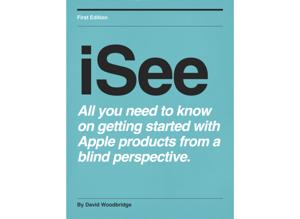
iSee - Using various technologies from a blind persons perspective.

iSee - Using various technologies from a blind persons perspective.

By David WoodbridgeTechnology
Download on the App Store

iSee - Using various technologies from a blind persons perspective. episodes

  • Windows 10 Narrator Series Episode 5 Startup options for Narrator including Narrator Home
    In this demo, I look at the startup options for Narrator within Narrator Settings accessed by Control+Windows+N, and go through the Narrator Home screen which is ahndy for beginer Narrator users.
    Note - keep in mind that this and other demos is based upon the Windows Insider build of Windows 10 and is mostly what you can expect when the next version of Windows 10 is officially released.
    10 min
  • Windows 10 Narrator Episode 3 - adjusting speech rate, Volume, Punctuation, and a tip on Verbosity
    In this demo I take you through adjusting Narrators Speech rate, Volume, Punctuation, and a tip on Verbosity.
    For the first 3 items, the minus (hyphen) and equals keys are used to to adjust.  The Equals key is the key that also has the Plus on it if you hold down the Shift key.  so a better way of thinking about this seuqnce is to think of mius and plus as least of way of remembering the commands which are:
    Narrator+Minus decrease or Narrator Plus increase Speech rate,
    Narrator+Control+Minus decrease or Narrator+Control+Plus increase Volume, and
    Narrator+Alt+Minus counter clockwise or Narrator+Alt+Pus clockwise cycle through Punctuation.
    Note - your Narrator key can either be Caps Lock or Insert.
    Finally I have atip on Narrator+V for Verbosity where if you have it on Verbosity level 3, it will read list numbering such as on the desktop.  If you add a Shift to this command, you can cycle backwards through the verbosity setings.
    6 min
  • Windows 10 Narrator Series Episode 2 - Narrator keys and Input (keyboard and touch screen) Learning mode.
    In Episode 2 of the Windows 10 Narrator Series, I identify the two Narrator keys (Caps Lock or Insert) that are used to start a Narrator command.
    I then move on to demonstrate the Input Learning mode accessed via Caps Locs plus 1 that allows the user to explore the keyboard, Narrator commands, and the touch screen (such as on a Surface pro) without the keys, Narrator commands or touch's on the screen being acted upon.
    To exit Input Learning mode, Caps Lock+1 twice.
    As I point out in the demo, if you want to use the Caps Lock function, press it twice to turn it on and again twice to turn it off.
    8 min
  • Windows 10 Narrator Episode 1 - turning Narrator on and off
    In this first episode, I show you how to turn Narrator on and off with my Surface Pro using the keyboard shortcut Control+Windows+Enter - this will turn Narrator on or off.
    For keys orientation, on the Surface pro keyboard, the keys to the left of the Space Bar going from left to right are Control, Function, Windows, and Alt.
    The second method I demo is to use the Windows Run command like this - Windows+R, type in the word "Narrator" without the quotes, and press the Enter key.
    When the Narrator interface comes up, you can TAb to Exit Narrator and press the Space Bar or ssimply press Control+Windows+Enter.
    The final option I talk about is to use Cortana to turn on or off Narrator.  Run Cortana with Windows+C, say "turn on Narrator" without the quotes smile, and Narrator should turn on (of course say off instead of on to exit Narrator).
    For some odd reason, on my Surface Pro this Cortana command(s) doesn't work.

    3 min
  • Envoy Connect - basic and simple to use daisy player with solar charging from the Vision Australia Library
    In this demo, I give you a physical description of the Envoy Connect, turning the unit on, navigation, and turning the unit off.
    I also mention what you get in the box, and the option you have to plug the unit via a micro UsB cable in to a UsB charger or power the unit via the USB cable from a PC which allows you to also transfer daisy audio books on to the player.
    For more information about the Envoy Connect, you can contact the Vision Australia library on 1300 654 656.
    In the new year 2019, the Envoy Connect will be available for sale via the Vision Store from Vision Australia.
    11 min

About iSee - Using various technologies from a blind persons perspective.

From the publisher's feed

Interesting tech stuff that I find useful