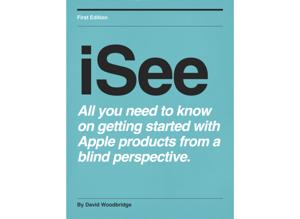
iSee - Using various technologies from a blind persons perspective.

iSee - Using various technologies from a blind persons perspective.

By David WoodbridgeTechnology
Download on the App Store

iSee - Using various technologies from a blind persons perspective. episodes

  • iOS 9.3 demo: offline voice dictation
    No longer need to be on 4g or Wi-Fi to use voice dictation: can be offline with no internet connection.
    Correction: in the demo I say it just works automatically.  However, if your language supports offline voice dictation you may need to turn it on in Settings, General, Keyboard, Dictation on/off toggle.  I dont' know why, but my setting was on by default which according to some blogs will be turned off by default.
    4 min
  • A preview of my Connected Home
    In this demo, I take you through my home and discuss all the hardware/software that makes up my connected home.
    For this demo, I was using watch OS 2.2, TV OS 9.2, and iOS 9.3.
    42 min
  • Jabra Storm Bluetooth Headset demo

    In this demo, I go through the following:


    In The Box:
    Jabra Storm Bluetooth Headset
    Micro USB cable
    Extra ear bud and wind sock
    Getting Started Guide


    Main features:
    9 hours of Talk Time
    2 hours battery charge
    Bluetooth and NFC pairing
    Pair up to 8 Bluetooth devices, 2 activate at same time (only one activate at a time talking)
    Win resistant (if to noisy, put on wind sock).
    Ware on either ear
    Very light and comfortable to use
    Jabra  Assist app for tracking headset, BT pairing tips and battery status (battery status seems not to be accessible)


    Physical description:
    Arm with Mic and Answer/End button on end
    Curved tight letter C to form body of headset that goes around ear
    Most controls positioned towards end of boom and on to curved C
    Answer/end button
    On/off switch
    Volume down/up
    Micro UsB connector with protective flap
    rotate ear piece to put in either ear


    Voiced prompts:
    Connected 
    Battery low Redialling 
    Disconnected 


    To connect your headset, go to the Bluetooth menu on your phone and select it from the list 


    To answer call, say Yes or No


    Pairing:
    When first used, is in paring mode,
    Hold down Answer/End button for 3 second s pair


    Functions:
    Switch side switch up to turn on headset or down to turn off headset
    Press Answer/End to hear Connected
    Press Answer/End to answer an incoming call or say yes or No
    Press Answer/End twice to reject an 
    incoming call or say No
    Press Answer/End twice to redial last call
    Press Answer/End for 1 second to activate Siri
    Press Answer/End for 3 seconds to put in pairing mode
    Press Answer/End plus Volume Down to turn off low battery warning
    Press volume down or up to adjust volume
    Press volume Up/Down at same time to mute
    Headset is capable of answering multiple calls and putting calls on hold


    Points to consider:
    low battery warning starts at 50 percent and announces every 10 minutes if not turned off
    Turning off voiced low battery warning sometimes doesn’t seem too work
    No charging voiced indication


    Benefits:
    light weight
    Comfortable to ware
    Can use in either ear
    Have to active devices at the same time
    9 hours talk time does last all day
    voice prompts
    Reasonably good volume
    Clear when on phone call



    20 min
  • How to activate Voice Dictation when using a BT kb or BT Braille input kb with voiceOver
    In this demo I show you how to activate Voice Dictation from the Bluetooth Keyboard using the VoiceOver command VO+Dash (-) or on the Braille display input keyboard Space+dots 156: i.e. the VoiceOver two finger magic double tap.
    The trick as I explain/demo is to make sure the on-screen keyboard is visible: with the Bluetooth keyboard just press the Eject key (top right of the keyboard) and on the Braille display input keyboard Space+dots 146.
    If the keyboard is not on the screen, you'll just start/stop music playing for example.
    With using the Braille display input keyboard, you can set the on-screen keyboard to be visible in Settings, General, Accessibility, VoiceOver, Braille, on-screen keyboard.
    Not currently able to be activated on the iPad pro smart keyboard.
    6 min
  • Apple watch tip: 3 configuration suggestions for new users and others for daily use
    In this demo, I take you through 3 configuration tips suggested by a listener of my podcasts for new users or people that would like a suggested way of using the watch everyday.These tips are: turning Wake Screen Off, Setting Accessibility (Triple Click) short-cut to voiceOver to allow pressing the Digital Crown on the watch to toggle VoiceOver on/off, and how to turn on VoiceOver Digital Crown navigation.
    Note - if you toggle VoiceOver off on the watch, this will turn off Digital Crown Navigation and you'll have to enable it again.
    7 min
  • Ring Video Doorbell Physical Installation/Setup with the Ring app on an iPhone 6s Using voiceOver
    In this demo of the Ring Video Doorbell, I give you a thorough setup and run through of what the Ring Video Doorbell is, unboxing, Ring app setup to use the physical Ring Video Doorbell, attaching the Doorbell to the wall and completing the setup, using the Ring app, and final comments.I must say, this is one of the best home connected devices I have purchased yet: i.e. what did I do before I had this device smile.
    53 min
  • Physical description and demo of the Incase iPhone nano 7th generation and iPhone 6s Arm Sport Bands from Apple
    As I use both of these Incase Arm Sport Bands, in this demo, I take you through a physical description of both of the iPod nano 7th generation and iPhone 6s  Arm Sport Bands available from Apple Stores or online.I just find these cases handy to use by getting your iPod nano or iPhone out of the way when exercising, gardening etc, and with the use of Bluetooth ear phones, you don't have any wires to worry about.


    11 min

About iSee - Using various technologies from a blind persons perspective.

From the publisher's feed

Interesting tech stuff that I find useful